It is amazing how every major .0 release of macOS for the last two years has completely broken my Mac Pro file sharing server. I use an older 2008 Mac Pro with file sharing enabled and a RAID set to store large and older archival files. It is a great system that I always think about replacing with a modern NAS or DAS, but never want to spend the money on and truly love being able to use one of my favorite Macs well past its useful life. Thankfully, screen sharing still works between my Macs, and usually the first .1 release of macOS fixes it. Fingers crossed the next release of Golden Gate fixes it!
Was browsing Microsoft Open Source Blog and came across this recently open-sourced project for Microsoft Comic Chat. I had never heard of the application before this post. I did use Windows 98 but I don’t think our family computer was ever connected to the internet at that time to experiment with Comic Chat.
What stood out, though, was a short section in the post titled “A time capsule of internet optimism,” which feels like something we all need a reminder of right now with how chaotic the internet feels. I miss the experimentation and playfulness of not only 90s internet and software development culture, something I wasn’t a part of but did enjoy as a kid, but more importantly the entire mid-2000s–2010s era that I was a part of and wish would come back in some shape or form.
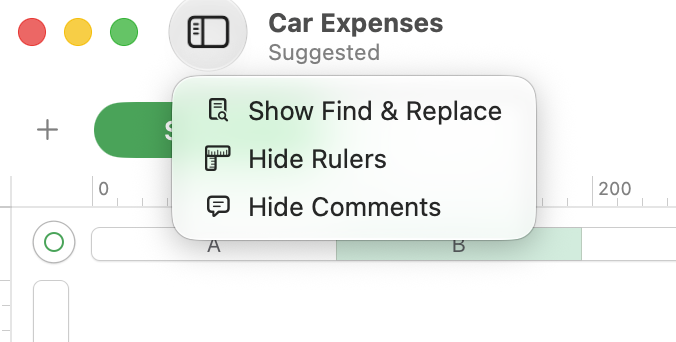
In another case of odd macOS UI design choices, Numbers, the Creator Studio version since that is a thing, has the SF Symbol for Sidebar being used to control the visibility of functions. Clicking any of these options does not result in a sidebar becoming visible, which is pretty odd. Not sure if this is specific to the Golden Gate Betas I’m on, or just the standard for the Numbers app itself.
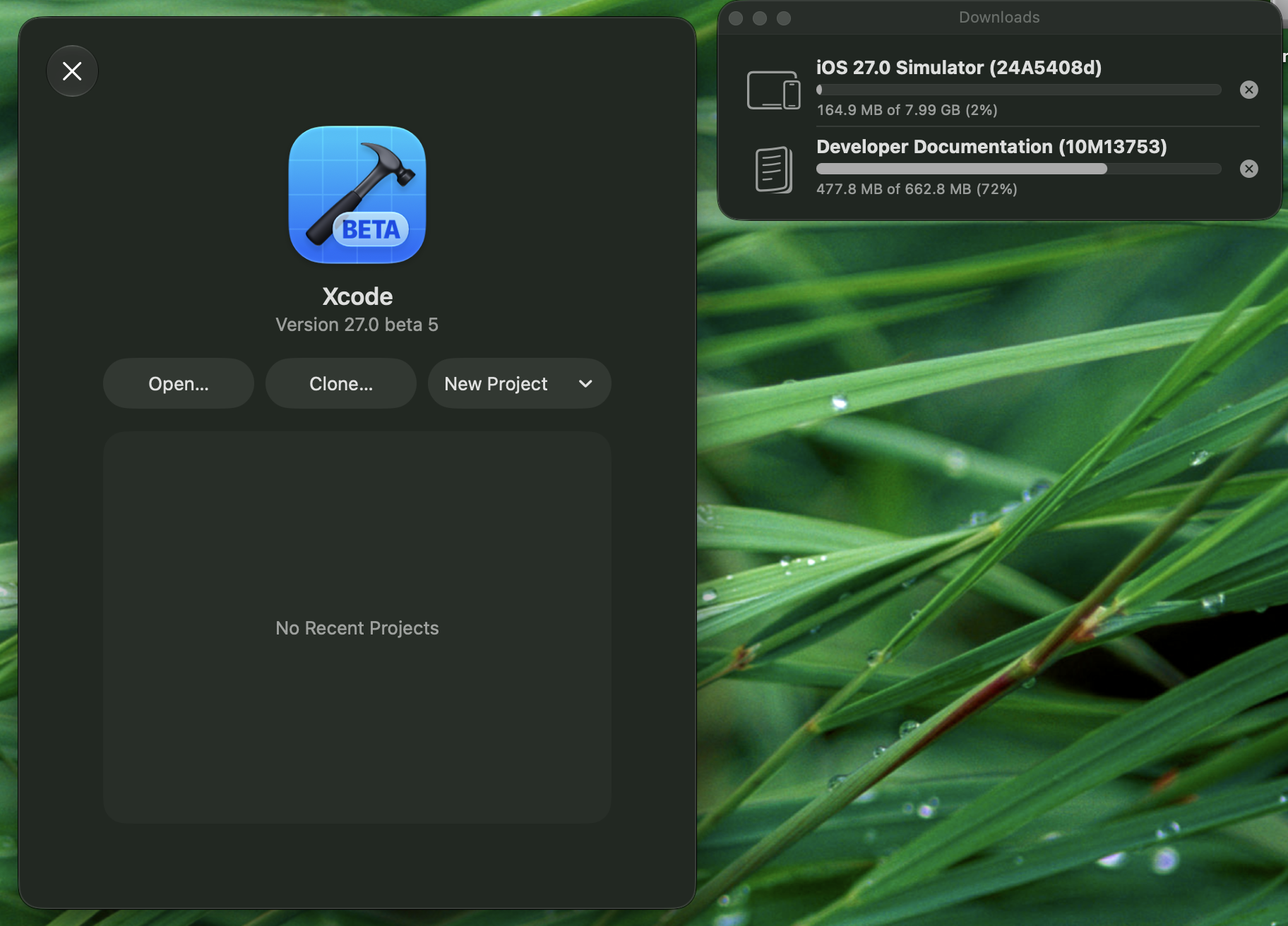
Not sure how I feel about the new Welcome screen for Xcode in macOS 27. Seems overly simplified to the point of it feeling out of place on the Mac.
I know the DVD Player app is probably one of the least used apps on macOS by most, but it amazes me that it still works after all this time. I know there are rumors that it might be dropped, but amazing it lasted this long.
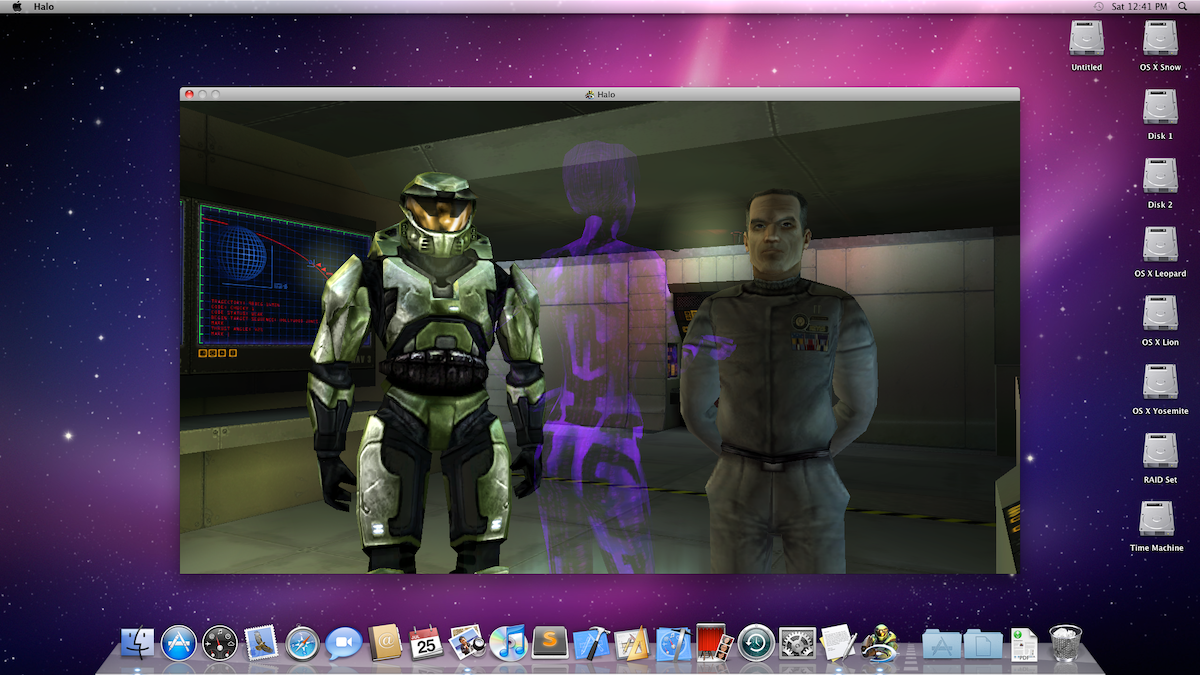
Played some classic Halo on the Mac this past weekend before the new Campaign Evolved comes out!
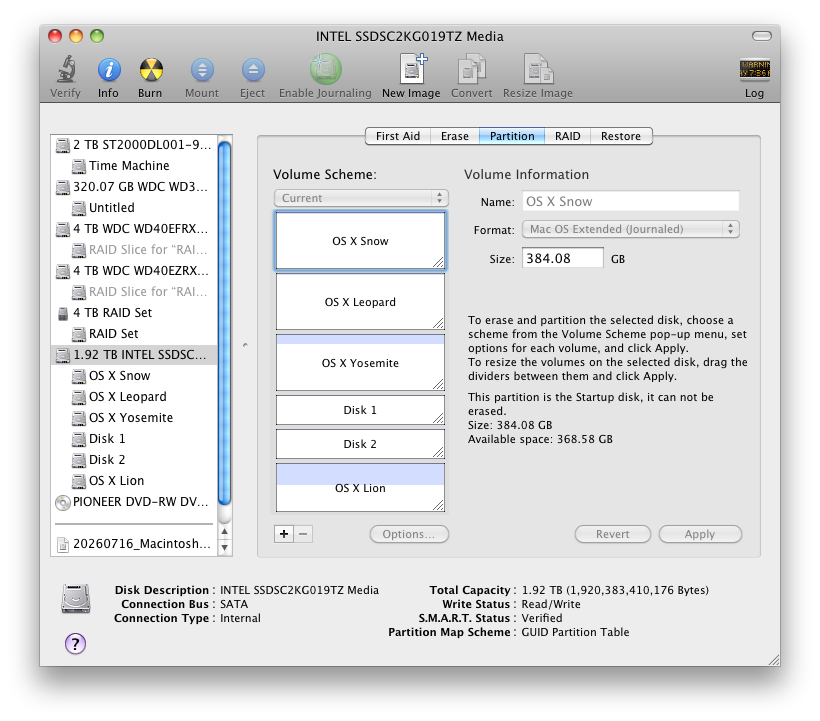
After years and years, I’ve finally built the tinkering machine of my dreams! OS X Leopard, Snow Leopard, Lion, and Yosemite all on one machine! Plus, room to grow with two spare 120GB partitions!
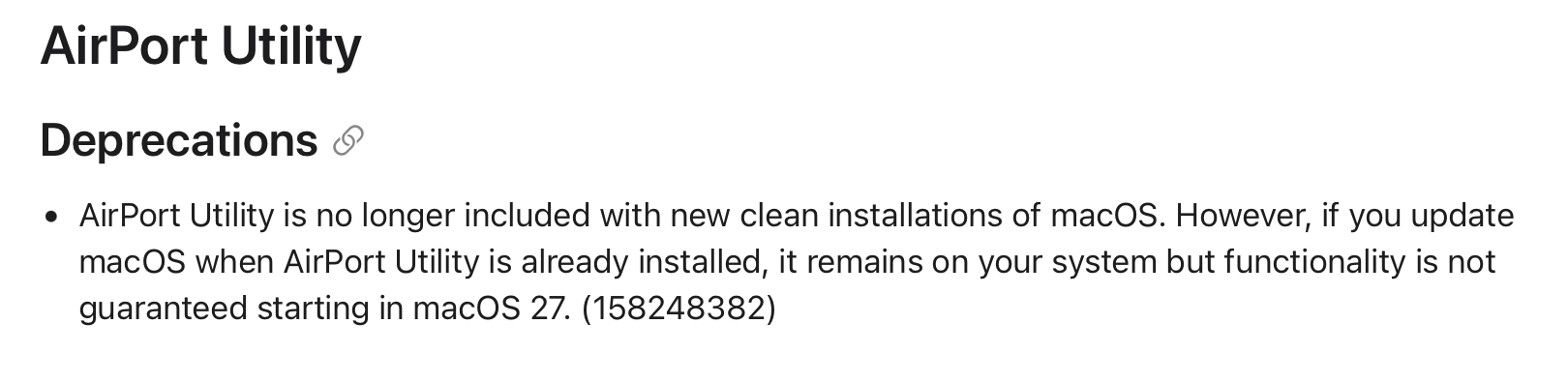
I know Apple’s Airport is long dead at this point, which is its own sad situation, but it feels weird to know that the AirPort Utility is more than likely going to die after macOS 27.
John Gruber shared this a little while ago. Such a great resource and breakdown of security vulnerabilities in a shipping app/service. A great case against the sensitive data governments want apps and services to collect on their users in the name of “safety”. github.com/xn0tsa/be…
WordPress in Docker Setup
Monday, June 22, 2026
Every few months, I find myself needing to set up a local copy of a WordPress site. Usually, to do local development of a custom plugin or WordPress API integration. The issue is that I’m not constantly doing it, so I usually forget one of the steps, resulting in me having to re-solve a problem I had already solved in the past. Finally, I’m going to document the whole thing on my site so I can have one place to go back to with all the steps.
Instructions
- Download a copy of your site. Thankfully, most hosts will offer downloadable backups of your WordPress site. Even better, this backup tends to include the SQL backup and the full directory contents.
- Create a new directory on your drive where you can host the Docker and WordPress files.
- Note: It is probably best not to set up this directory anywhere you sync data with a cloud provider. WordPress directories can be massive, so no need to sync that with iCloud or Dropbox.
- Place the below Docker composer file in the directory; you may have to edit the ports to open ones within your Docker environment. Once placed, run
docker compose up -dto start the containers.
services:
  wordpress_db:
    image: mysql:latest
    volumes:
      - wordpress_db:/var/lib/mysql # Volume for Docker to store MySQL Data
    restart: always
    environment:
      MYSQL_ROOT_PASSWORD: root_pass
      MYSQL_DATABASE: db_name
      MYSQL_USER: db_user
      MYSQL_PASSWORD: db_pass
    ports:
      - "3308:3306" # Port format "<Local Machine>:3306" 3306 being the in container port for MySQL
  wordpress:
    depends_on:
      - wordpress_db
    image: wordpress:latest
    volumes:
      - ./wordpress_data:/var/www/html
    ports:
      - "8008:80" # Custom port for Wordpress site
    restart: always
    environment:
      WORDPRESS_DB_HOST: wordpress_db # Will hookup host with wordpress_db container
      WORDPRESS_DB_USER: db_user
      WORDPRESS_DB_PASSWORD: db_pass
      WORDPRESS_DB_NAME: db_name
volumes:
  wordpress_db: {}
  wordpress_data: {}
- Unzip the backup, and place the WordPress main directory (the directory with the wp-config.php, etc., files) inside a directory called
wordpress_datawithin your working directory. - Open your SQL backup in a good text editor. You could use VIM or something else, but I tend to use BBEdit for these edits as it can quickly find and replace on large files.
- Do a complete find and replace on the main domain for the WordPress site you are recreating. I tend to do the following replacements:
https://<domain>/ -> http://localhost:<docker port>
<domain> -> localhost:<docker port>
- Import your SQL file with your choice of SQL editors or via the terminal.
- Update your
wp-config.phpfile to replace all the define calls with the below, which references your Docker compose file:
// a helper function to lookup "env_FILE", "env", then fallback
if (!function_exists('getenv_docker')) {
	// https://github.com/docker-library/wordpress/issues/588 (WP-CLI will load this file 2x)
	function getenv_docker($env, $default) {
		if ($fileEnv = getenv($env . '_FILE')) {
			return rtrim(file_get_contents($fileEnv), "\r\n");
		}
		else if (($val = getenv($env)) !== false) {
			return $val;
		}
		else {
			return $default;
		}
	}
}

// ** Database settings - You can get this info from your web host ** //
/** The name of the database for WordPress */
define( 'DB_NAME', getenv_docker('WORDPRESS_DB_NAME', 'wordpress') );

/** Database username */
define( 'DB_USER', getenv_docker('WORDPRESS_DB_USER', 'example username') );

/** Database password */
define( 'DB_PASSWORD', getenv_docker('WORDPRESS_DB_PASSWORD', 'example password') );

/**
 * Docker image fallback values above are sourced from the official WordPress installation wizard:
 * https://github.com/WordPress/WordPress/blob/1356f6537220ffdc32b9dad2a6cdbe2d010b7a88/wp-admin/setup-config.php#L224-L238
 * (However, using "example username" and "example password" in your database is strongly discouraged.  Please use strong, random credentials!)
 */

/** Database hostname */
define( 'DB_HOST', getenv_docker('WORDPRESS_DB_HOST', 'mysql') );

/** Database charset to use in creating database tables. */
define( 'DB_CHARSET', getenv_docker('WORDPRESS_DB_CHARSET', 'utf8') );

/** The database collate type. Don't change this if in doubt. */
define( 'DB_COLLATE', getenv_docker('WORDPRESS_DB_COLLATE', '') );
- Now visit your new WordPress container, and your site should load mostly intact!
Troubleshooting
- You usually will need to delete any cache plugin content for the site to fully work.
- If you have Wordfence or other security plugins, it might be best to delete those to allow logins.
- I’ve found sometimes after the move there is a lingering https rule that forces the site to serve as HTTPS. Editing your
wp-config.phpfile to contain these two lines at the bottom above therequire_once(ABSPATH . 'wp-settings.php');line tends to resolve this issue.
define('WP_HOME','http://localhost:8008');
define('WP_SITEURL','http://localhost:8008');

Finished reading: I Am Not a Robot - My Year Using AI to Do (Almost) Everything by Joanna Stern 📚

Finished reading: The Fall of Númenor And Other Tales from the Second Age of Middle-earth by JRR Tolkien 📚
Starting to dive into WidgetKit since I finally have an app that calls for that sort of functionality. Was pleasantly surprised when I found out Apple actually lists the compatible SwiftUI views for WidgetKit!
This is new “feature” from OpenAI is truly insane. The idea of letting a company like OpenAI into your banking and personal finance feels like the worst possibly privacy decision you can make. This feels fueled by the rise of these financial “gurus” on social media and OpenAI wanting in on the popularity. Even with OpenAI’s callout of privacy and the ability to remove financial data, I wouldn’t trust a company still figuring out their plan to profitability to honor the promise of fully removing your information and not using it to train future models or sell to third-parties.
The other night, an old Mac OS X feature popped back into my head that I used to love: Dashboard Web Clips. It is really sad that nothing like that really seems to exist anymore, especially with the huge improvements to Widgets on macOS. I understand that modern webpage markup is usually a mess, so a feature like this would be difficult to maintain over the years. This video does a great job explaining how Web Clips worked, and you get a nice stroll down Leopard memory lane!

Finished reading: Beren And Lúthien by J.R.R. Tolkien 📚
Two months ago, I announced that I was reviving my first Mac app, Coords, and modernizing it for the first time in 11 years. This was a surprisingly challenging project, mainly due to SwiftUI and a back-and-forth App Store review process. The great part, though, even with all the work and rebuilding, I’m happy to see the app released with its new icon and modern features.
In 2015, I had already been developing iOS apps for about 5 or 6 years and was pretty confident with my skill set and ability to build compelling iOS apps for that time. However, on Mac OS X, I was very unsure about how a lot of app development worked. Sure, OS X shared a lot with iOS at a foundational level. AppKit, though, was such a bigger beast to work with compared to UIKit at that time, which made me feel less than confident with my skills for developing for the Mac. Worse so, I vaguely remember it being difficult to find good example code and explanations of AppKit techniques in 2015.
Fast forward, though, and now my own confidence levels have swapped. Many of my day jobs since 2015 have required me to build custom Mac applications for data processing. Over the years, I’ve been slowly building a stronger ability to develop for the Mac, and it has resulted in me being able to confidently re-build Coords. Better yet, this release isn’t just a rebuild and modernization, but includes many features I wanted to include in the original release but didn’t know how to go about developing them at that time.
One last thing. In the day and age of AI/vibe coding of apps, Coords really isn’t anything crazy special as it stands today. Any coding agent would be able to hammer out an app similar to Coords without much intervention by a developer. This is something I struggled with when I was trying to find motivation to work on the project. If I’m being honest, I still feel a bit of that struggle even after releasing it and planning future features or working on other projects. However, something in me still finds great joy in the actual problem-solving of coding without AI assistance. Researching documentation, finding a solution to your problem, even possibly finding other interesting topics in documentation while browsing, and finally writing all the code myself is still as fulfilling as it was back in 2015 when I first wrote Coords.
You can find Coords in the Mac App Store, and I’m working on releasing it here on my site as well!
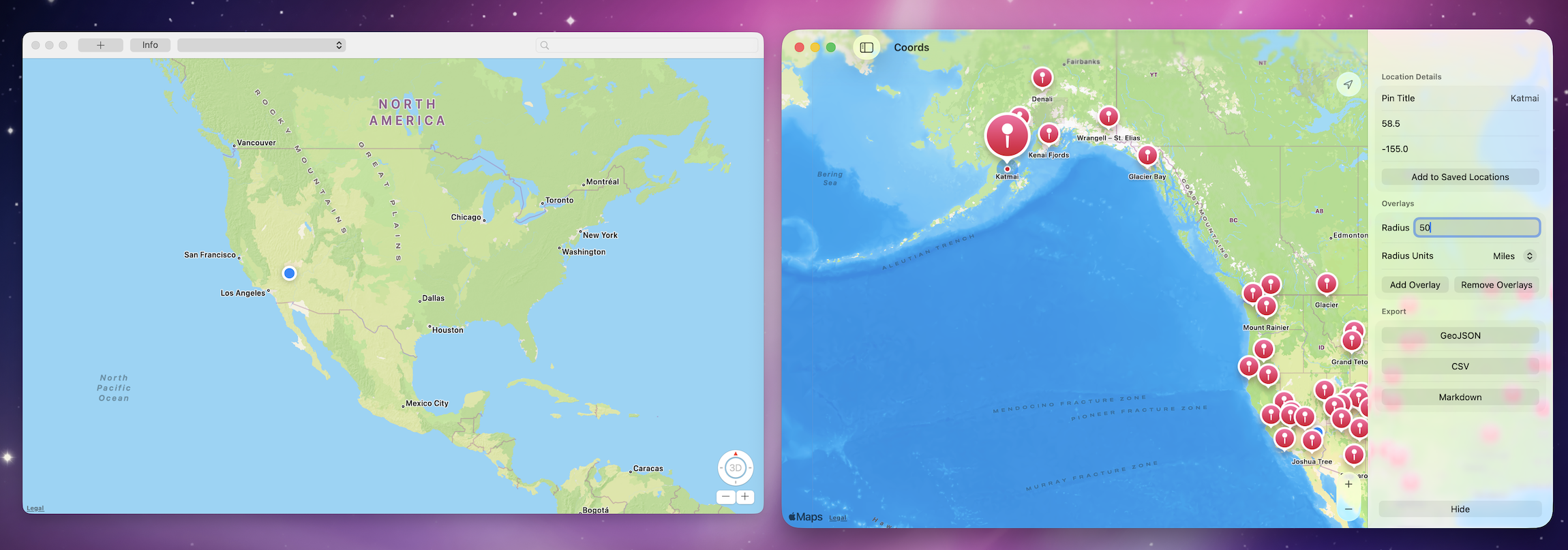
I’ve been banging my head against the wall with App Store rejections about this “bug” that I couldn’t reproduce where my menu bar actions apparently didn’t work. Turns out they did work, but because the view was hidden at some point during app review, the action looked like it didn’t do anything. So frustrating, but hopefully that is the last of the rejections.
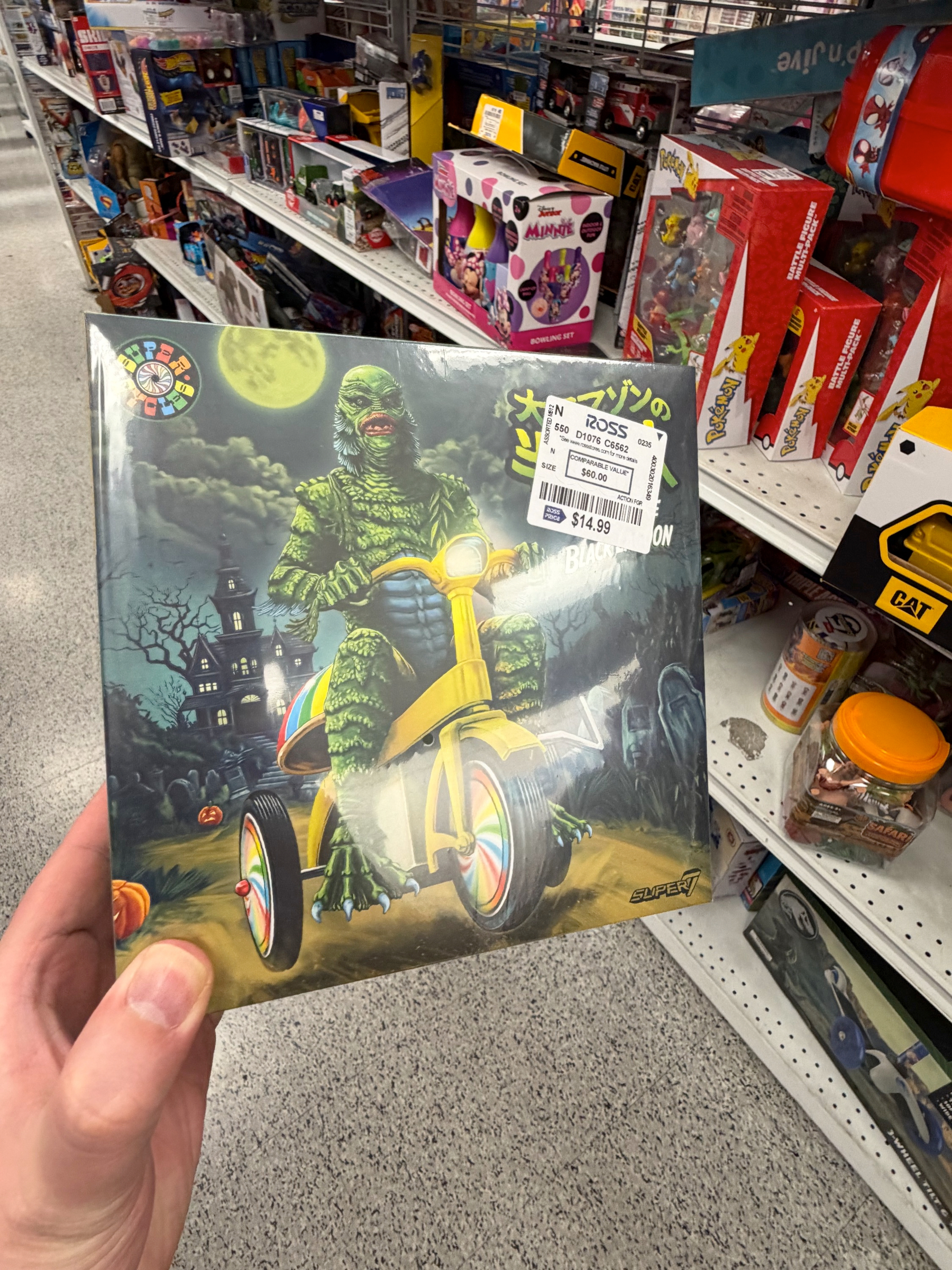
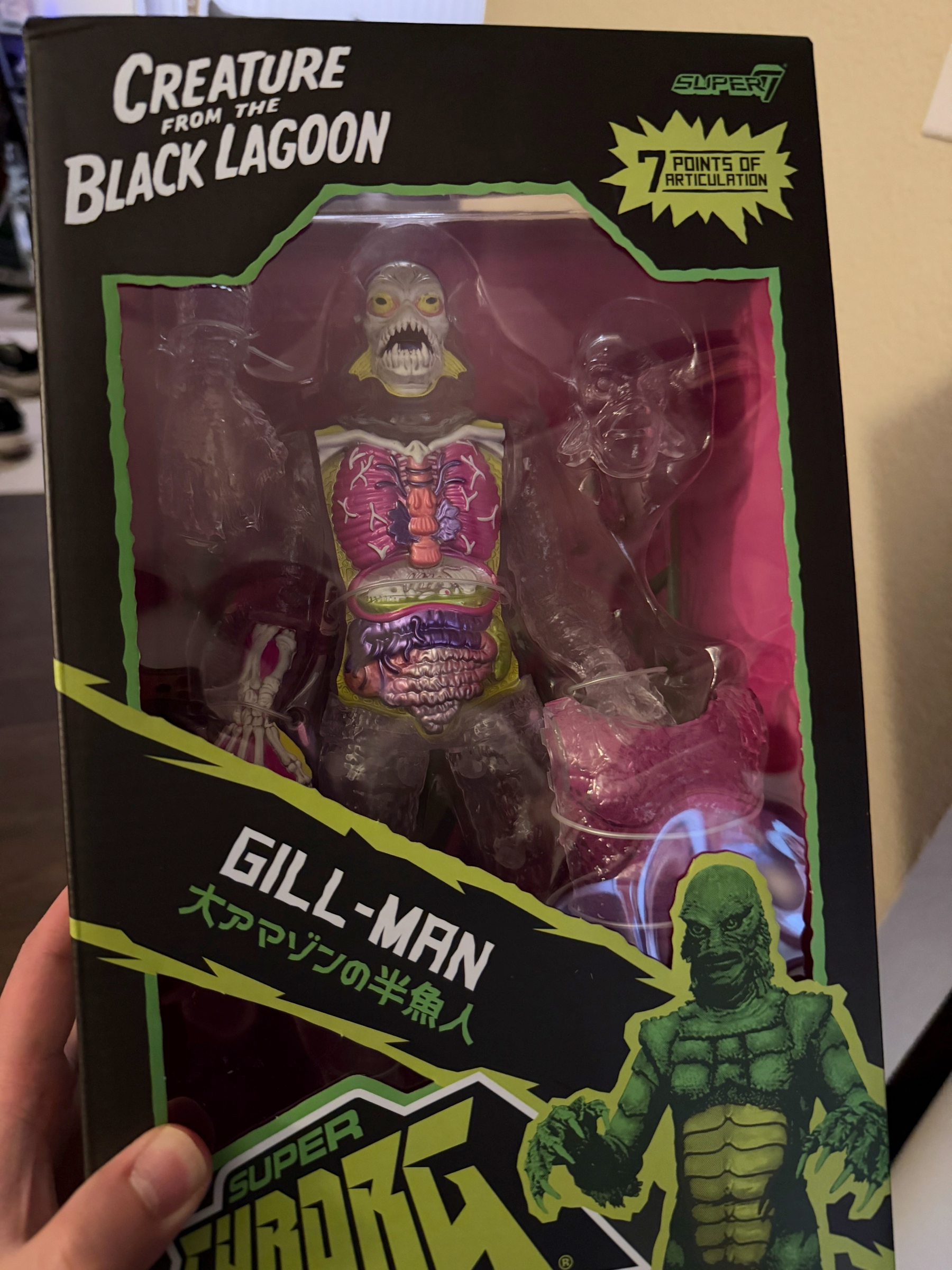
Some great Ross finds from this past weekend!
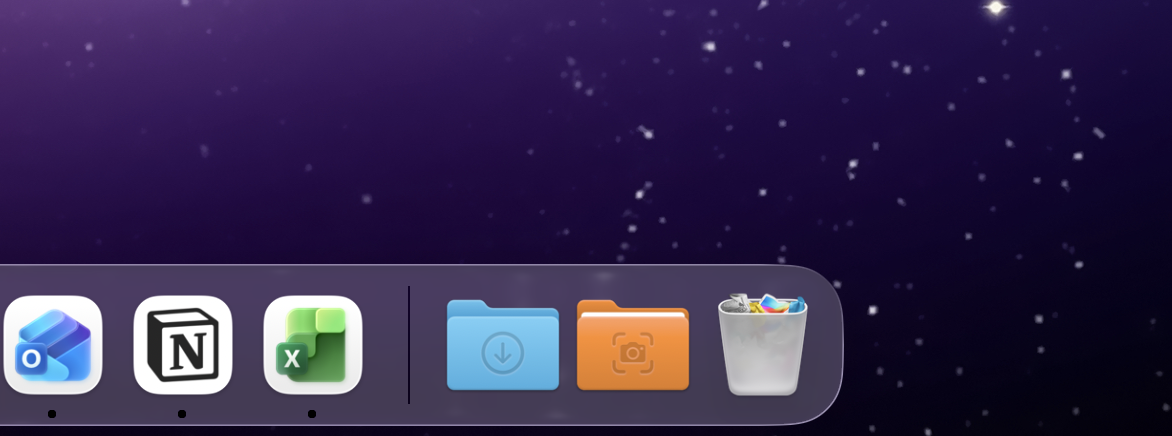
So happy that it looks like in macOS 26.4 they finally fixed the bug where custom folder icons actually appear in the dock!